Checking a plate
Type a plate, read the answer, and confirm a close match when you mistype.
Look up a plate
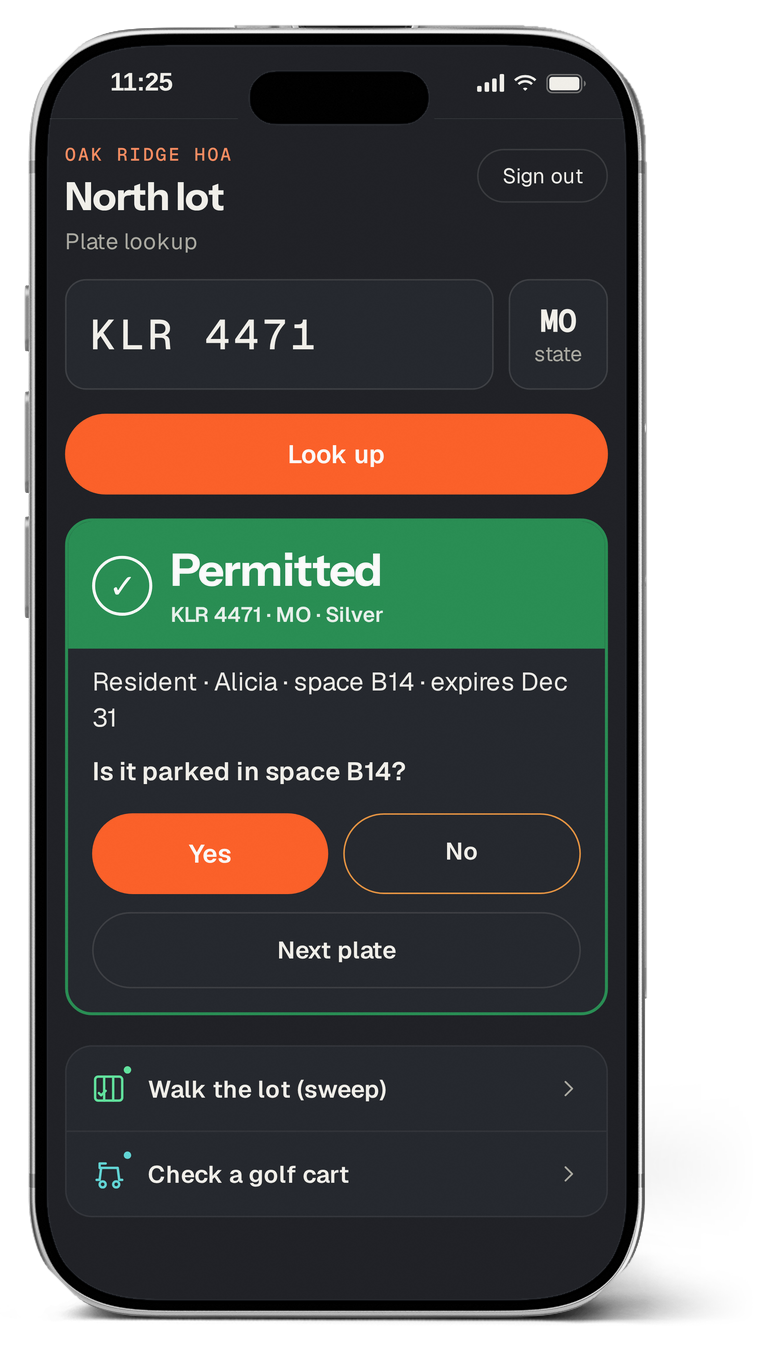
- Type the plate in the big box. Change the state with the button beside it if the car isn't from the usual state.
- Tap Look up.
- Read the answer, then tap Next plate.
Recent plates show at the bottom; tap one to look it up again.
The three answers
- Permitted (green ✓): the car has a permit. You see the kind of permit, the holder's first name, the spot, and when it expires.
- Visitor pass (amber P): a guest pass is active. You see who invited them and until when.
- Not authorized (red ✕): no permit or pass. If a guest pass on this plate ended recently, it says when.
Every answer also shows earlier warnings and violations for that plate at this lot.
Did you mean…?
When a typed plate comes back Not authorized, the app may offer up to three permitted plates that are one letter off, with the car and the spot. Check the car before you pick one. Tap That's the car only if it matches; the app records both plates.