Admins, activity, and security
Add and remove admins, sign-in options, hand off when you leave, approve access requests, and see every change.
- Add a second admin
- Password and two-step sign-in
- Hand off and leave
- Requests for admin access
- The activity log
- How your data is protected
Add a second admin
An admin can change everything for the property. Have at least two, so nobody is locked out when someone leaves the board, changes jobs, or loses their phone.
When to use it: on day one, and whenever the board or management changes.
- Go to Staff and find Admins.
- Open Add an admin, type Their email, and choose Add admin. They get a sign-in link.
Remove next to an admin takes away their access right away; do it the day someone leaves the role. You can't remove the last admin.
If a management company runs the property, its admins are listed too, marked Through and the company's name. The company manages them: only another of its admins sees Remove next to them. A company admin adding someone chooses Admin of this property only, or every property the company runs. A company admin who lost the phone with their authenticator app asks another of the company's admins to choose Reset app next to them.
Password and two-step sign-in
Each admin chooses how they sign in, under Password and sign-in at the bottom of the menu (on a phone, under Menu). The emailed link always works and is already secure; these options are about convenience and extra protection.
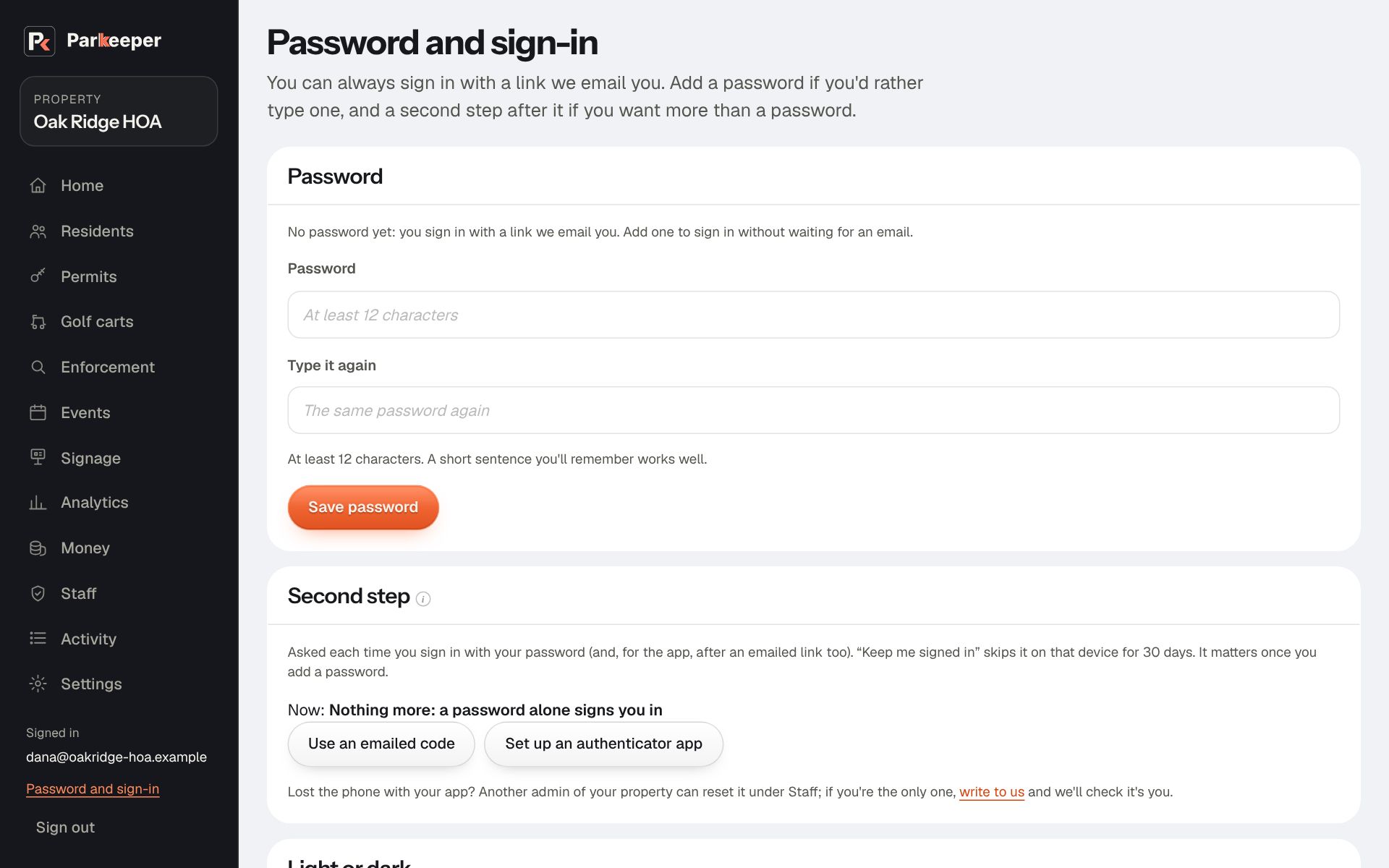
- A password: sign in without waiting for an email. Worth it if you sign in often. At least 8 characters, and 12 or more is better; a short sentence works well. Forgot it? Sign in with an emailed link and set a new one.
- An emailed code after your password (Use an emailed code): someone who learns your password still can't get in without your email. A good choice if you use a password at all.
- A code from an authenticator app (Set up an authenticator app): the strongest. Scan the square code with the app (the one built into your phone's passwords works, or any free one) and type the 6-digit code it shows. From then on, every sign-in asks for a code from the app, even after an emailed link. Best for admins of a large property or anyone handling money.
Keep me signed in on this device for 30 days skips the password and second step on that device until the 30 days are up. Use it on your own computer; leave it unticked on a shared one, so you're signed out when the browser closes.
Admins of a management company always keep a second step (an emailed code or an app), because they can reach many properties at once.
Light or dark, on the same page, sets how the admin pages look for you: a light page or a dark one. It is yours alone, and it follows you to any computer or phone you sign in on.
Hand off and leave
Leaving the board or the job? Hand off cleanly so the property keeps running and your access ends with your role.
- Add the next person as an admin first, and check they can sign in.
- Export your records if your successor or the board wants a copy (Export your records).
- On Staff, open Hand off and leave this property and choose Leave this property. You lose access right away; the other admins keep running it.
Requests for admin access
Someone new (a new board member, a new manager) can choose Ask for admin access on your sign-in page instead of tracking you down. You get an email, and the request shows on Staff under Asked for admin access.
- Approve makes them an admin with full access right away and sends them a sign-in link. Approve only people you know hold the role; an admin can change everything.
- Decline closes the request. Nothing changes until an admin approves.
The activity log
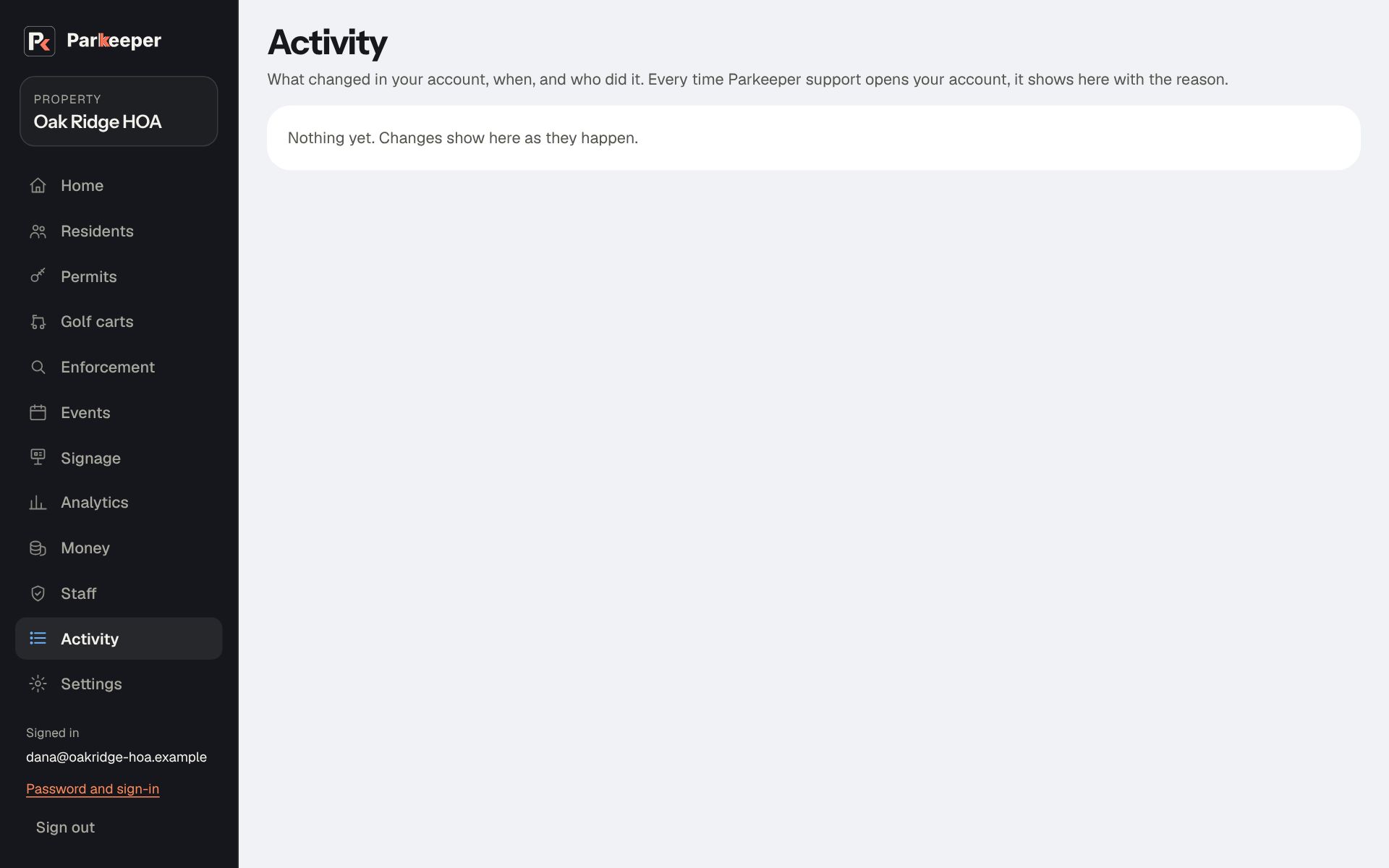
Activity shows what changed in your account, when, and who did it: admins added, settings changed, refunds, permits cancelled, and more.
When to use it: someone asks "who changed this?", a board member wants to see what was done, or something looks different from yesterday.
How your data is protected
What to tell a resident or board member who asks:
- Every record belongs to one property; the database itself refuses anyone from another property.
- Residents have no password to steal: they sign in by one-time links and codes. Admins can add a password, at least 8 characters (12 or more recommended), with a second step.
- Card numbers never touch Parkeeper; the payment processor handles them.
- Photos and plate records are kept only as long as you set, then removed or made anonymous.
- Data is backed up regularly, with copies kept apart from the main system.
- Personal information is never sold.