Getting started
What Parkeeper does for you, your first week in order, signing in, and finding your way around.
- Your first week: the order that works
- Sign up and set up your property
- Sign in
- Your home page and the setup checklist
- Finding your way around
Your first week: the order that works
Parkeeper replaces the parking list, the hanging tags, and the phone calls about guests with three things: a record of who may park (permits and guest passes), a way for whoever checks the lot to look up any plate in seconds, and a record of what happened (warnings, photos, tows, payments). Everything else builds on those.
Do things in this order. Each step depends on the one before it, and doing them out of order is the most common reason a first week feels harder than it should.
- Set up the property (about 15 minutes). The setup questions create your lot, its spots, and a kind of permit for each group that parks. See Sign up and set up.
- Add a second admin. Do it on day one, so the property never depends on one person's inbox. See Add a second admin.
- Add your residents, all at once from a spreadsheet if you have one. Permits and passes belong to units, so units come first. See Bring everyone over.
- Issue permits with each car's plate. Until a plate is on a permit, a plate check calls it "not authorized". See Issue a permit.
- Check the guest pass rules before anyone gives a pass, so the limits match your rules from the start. See Set the rules.
- Send sign-in links to residents, so they can give guest passes themselves instead of calling you. See Send sign-in links.
- Invite whoever checks the lot, once the permits are in. Otherwise their first plate checks find nobody permitted. See Invite whoever checks the lot.
- Print and post the guest sign, if visitors may get a pass themselves. See Print the sign.
- Connect your bank account, only if anything has a price. See Connect your bank account.
Sign up and set up your property
Setup asks plain questions about your place and turns the answers into settings: the lot, its spots, a kind of permit for each group that parks, the guest pass rules, and whether anyone pays. You never have to know what a setting is called to get it right, and every answer can be changed later in Settings.
When to use it: once, when you start. Have a rough count of your parking spots and a sense of who parks where. You don't need your resident list yet. Setup saves as you go; Email me a link to finish later lets you pick up on another device.
- Go to parkeeper.app and choose Start free. Enter Your work email and Your name. There is no password to make: Parkeeper signs you in with emailed links, which can't be guessed or reused.
- What kind of place is this? Pick the closest. It decides which questions follow, so an HOA isn't asked about event days and a church isn't asked about golf carts.
- What's it called, and where is it? The name is what residents and visitors see on their pages, the sign, and every email.
- About how many parking spots are there? A rough number is fine. It sets your plan's price band and the "spots left over" count, and you can correct it later.
- Do people have their own assigned spots? If the spots are painted with numbers, choose Yes, I'll type them in and type them the way they're painted, for example
A1-A30, B1-B30. Matching the paint matters: whoever checks the lot will read the number off the ground. - Who parks here? Tick every group. Guests and visitors become guest passes; every other group becomes its own kind of permit, so each can have its own rules and price.
- How many spots does each group get? The bar shows what's left as you type. Promising more spots than you have is a warning sign unless not everyone parks at once (more in Kinds of permit).
- Does anyone pay to park? Set a price a month or a year for any group that pays. Free groups stay free; payments only switch on when something has a price.
- Guests: whether residents can give their own guests a pass, and whether visitors can get one from a sign without an invite. Either, both, or neither.
- Guest passes (only if residents give them): how long a pass lasts, from a few hours to a week, and how many each household gets a month. Start strict; it's easier to loosen limits than to take them back.
- Who checks the lot? and Do you ever have cars towed? These only turn features on; nothing is ever towed automatically.
- Read Here's what we set up line by line. Use Change on anything that looks wrong, then Looks right.
- If anyone pays, Getting paid explains what connecting your bank account needs. I'll do this later is fine: it waits on Home.
- Start your free trial: choose yearly or monthly billing for after the 60-day trial and add a card. Nothing is charged for 60 days, and you can cancel from Settings before then.
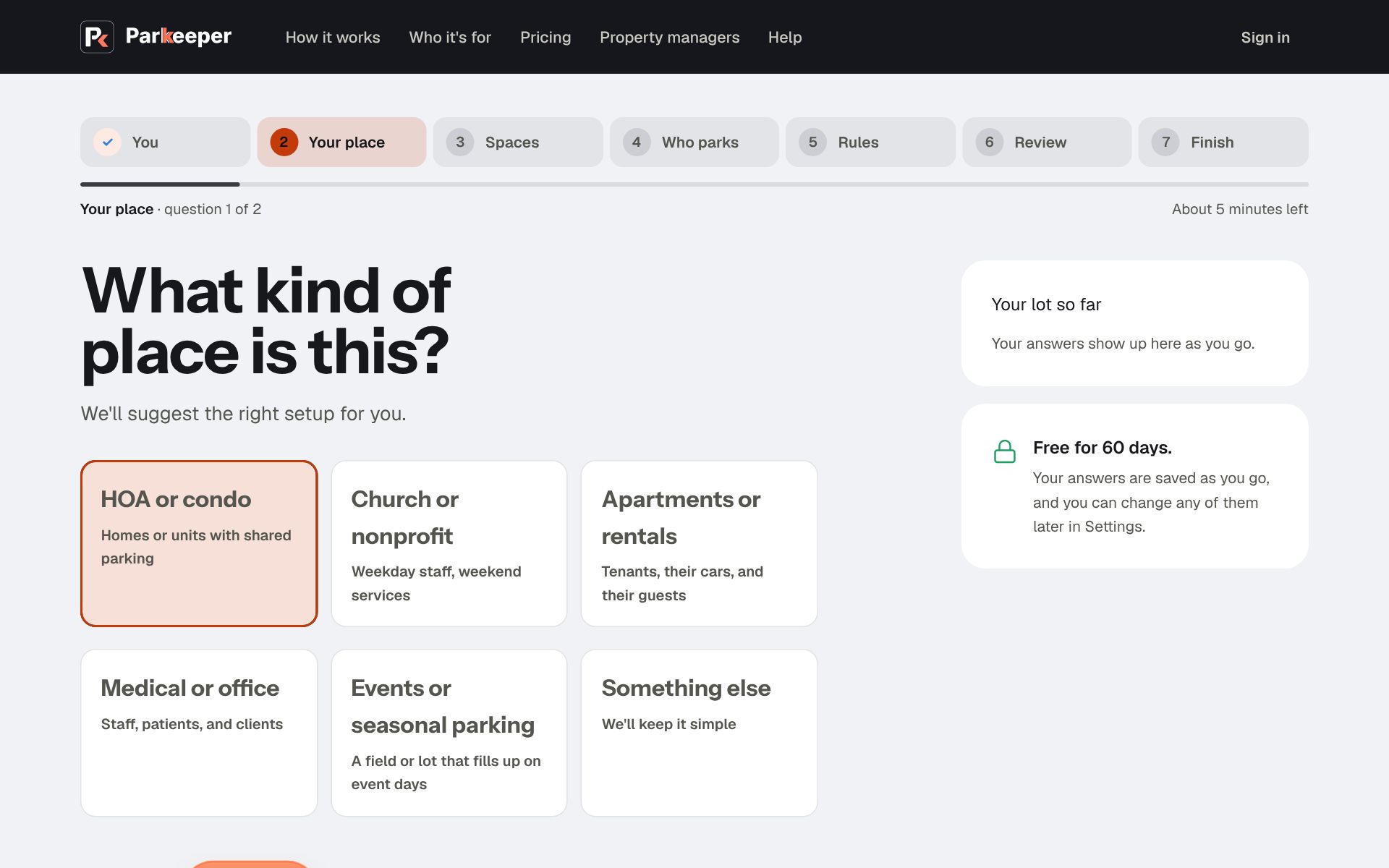
Sign in
Your property has its own web address, like oakridge.parkeeper.app. Bookmark it: it's where you, your residents, and your visitors all start. By default you sign in with a one-time link or code we email you; you can add a password and a second step if you prefer.
When to use it: every time your sign-in has ended. On your own computer, a password with Keep me signed in on this device for 30 days means you rarely have to.
- Go to your property's address and choose Sign in. (From parkeeper.app, Sign in finds your property for you.)
- Enter Your email and choose Email me a sign-in link.
- Open the email and use the link, or type its 6-digit code on the sign-in page. The code is handy when the email is on your phone but you're signing in on a computer. Either works once and expires in an hour, so a forwarded or old email can't be used to get in.
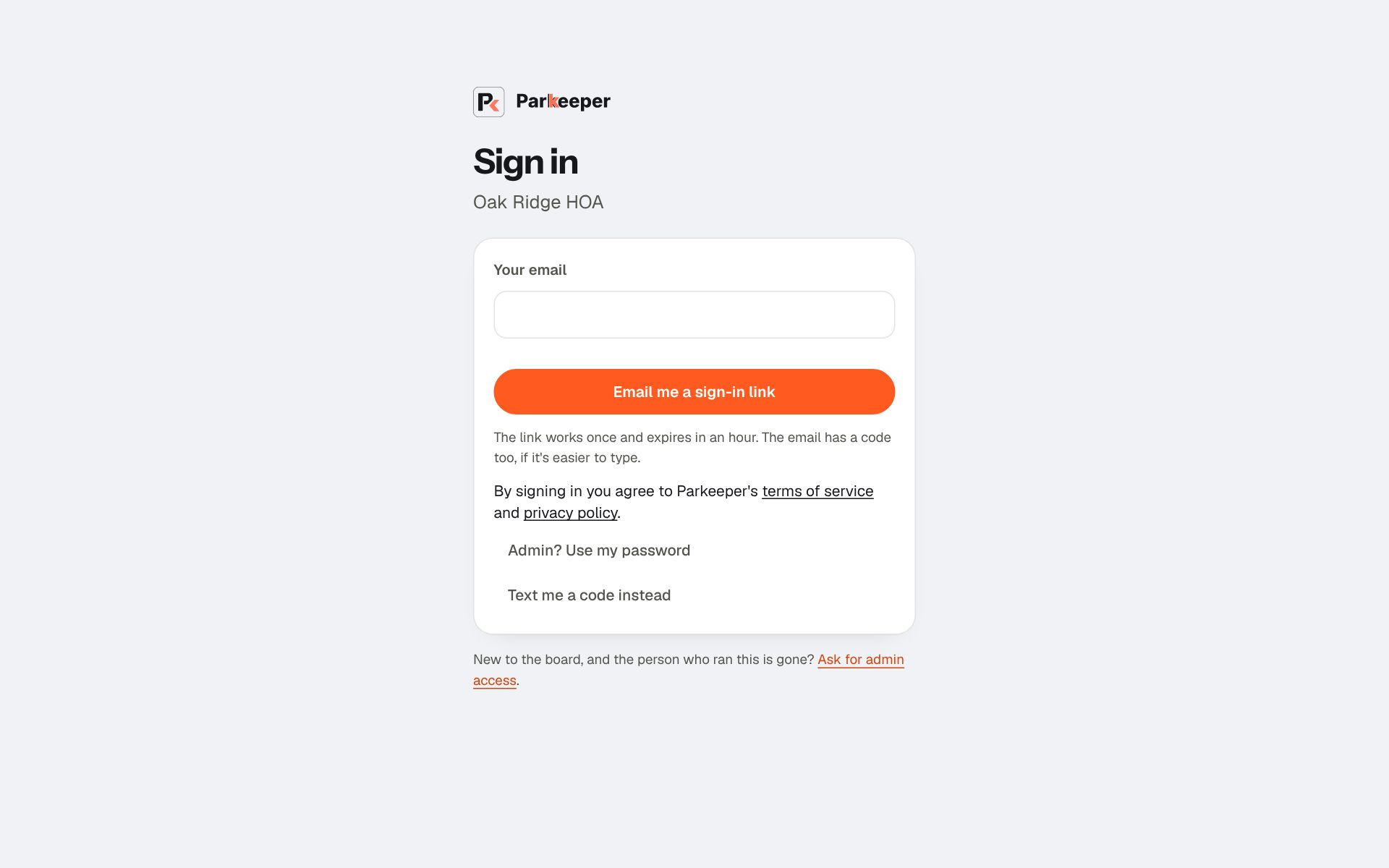
Added a password? Choose Admin? Use my password. If you chose a second step, you're asked for it next. See Password and two-step sign-in for when each makes sense.
Text me a code instead sends a 6-digit code to Your mobile, useful when email is slow.
Your home page and the setup checklist
Home answers "is anything wrong, and what's left to do?" The numbers at the top show the state of the lot today, and the Getting set up checklist tracks the steps that make Parkeeper actually work. Each step opens the page where it happens, with a short explanation of why it matters.
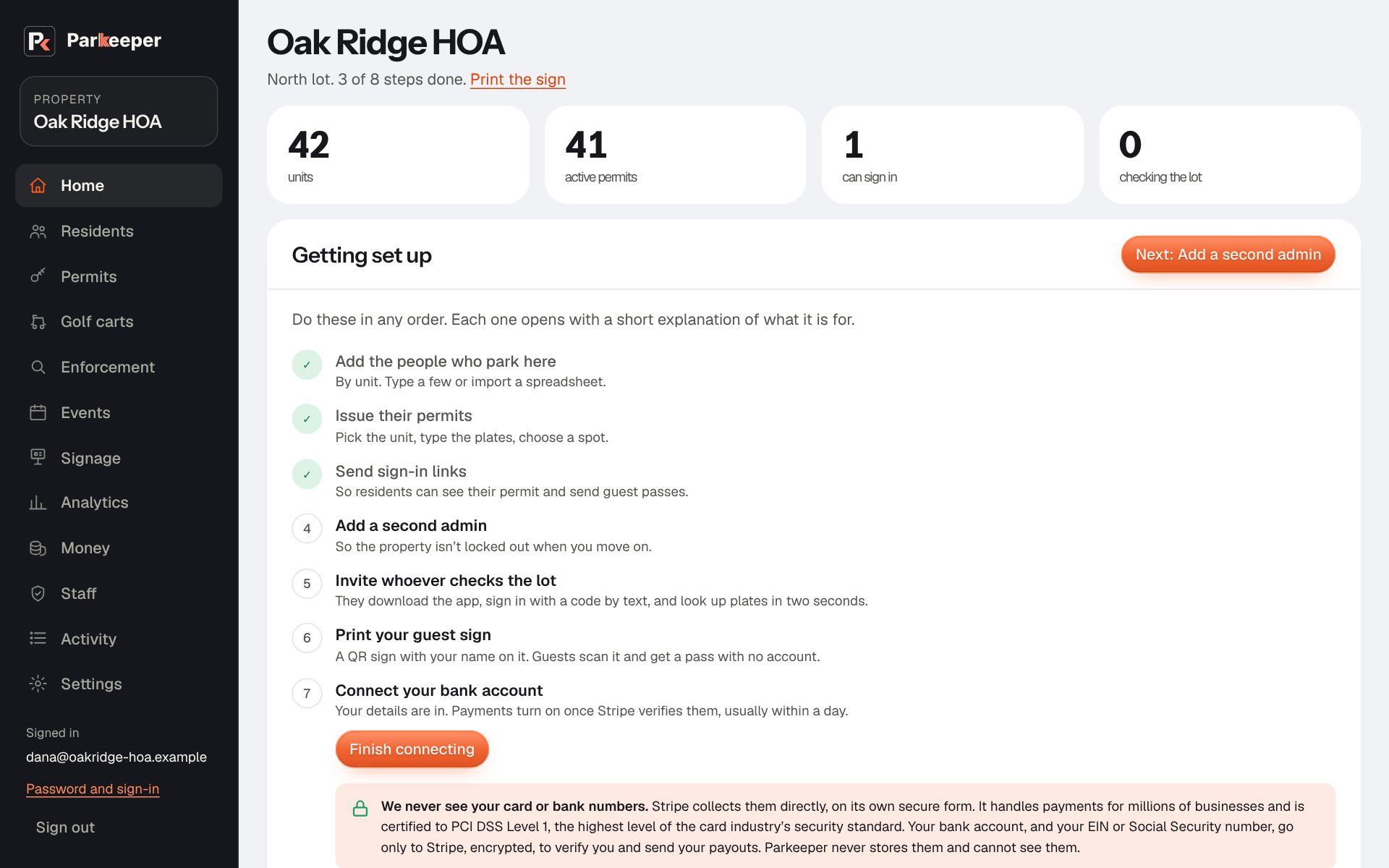
- Add the people who park here: residents, by unit. Everything else hangs off units.
- Issue their permits: which cars may park, and where. This is what a plate check reads.
- Send sign-in links: so residents give guest passes themselves.
- Add a second admin: so the property never depends on one person.
- Invite whoever checks the lot: the people who look up plates with the app.
- Add your spot numbers, Print your guest sign, Connect your bank account, and Register golf carts appear only when they apply to you.
Home also shows cards that need a decision, for example households that moved out a while ago (keep or remove their contact details) or a payment dispute to answer. Those cards are the reason to glance at Home once a week even when nothing seems wrong.
Finding your way around
On a computer, the menu on the left has every part of your property. On a phone, the same parts are tabs across the top of the page: swipe them sideways, and tap Menu for your property and your sign-in settings.
It's organized by the job you're doing:
- Home: what needs your attention.
- Residents: the households and the people in them. Start here when someone moves in or out.
- Permits: which cars may park, and where. Start here when someone gets a new car.
- Golf carts: only if golf cart registration is on.
- Enforcement: every warning, violation, and tow request, with photos. Start here when someone disputes a warning.
- Events: selling parking for a busy day.
- Analytics: how full the lot really is. Start here before changing prices or permit counts.
- Money: payments, refunds, payouts, and statements.
- Staff: who checks the lot, and who the admins are.
- Activity: what changed, when, and who did it. Start here when you're asked "who changed this?"
- Settings: everything setup decided, in one place.
Many pages have a How this works button that opens a short explanation at the top. Help, at the bottom right of every page, answers questions about your own property; see Getting help.