Settings reference
Every section of Settings: what it changes and when to change it.
- The lot
- Add or remove a lot
- What's on
- Guest passes and prices
- Your name and color
- Your web address
- Your Parkeeper plan
- Getting paid
- Towing
- Parking terms
- How long records are kept
- Kinds of permit
- Spot numbers
The lot
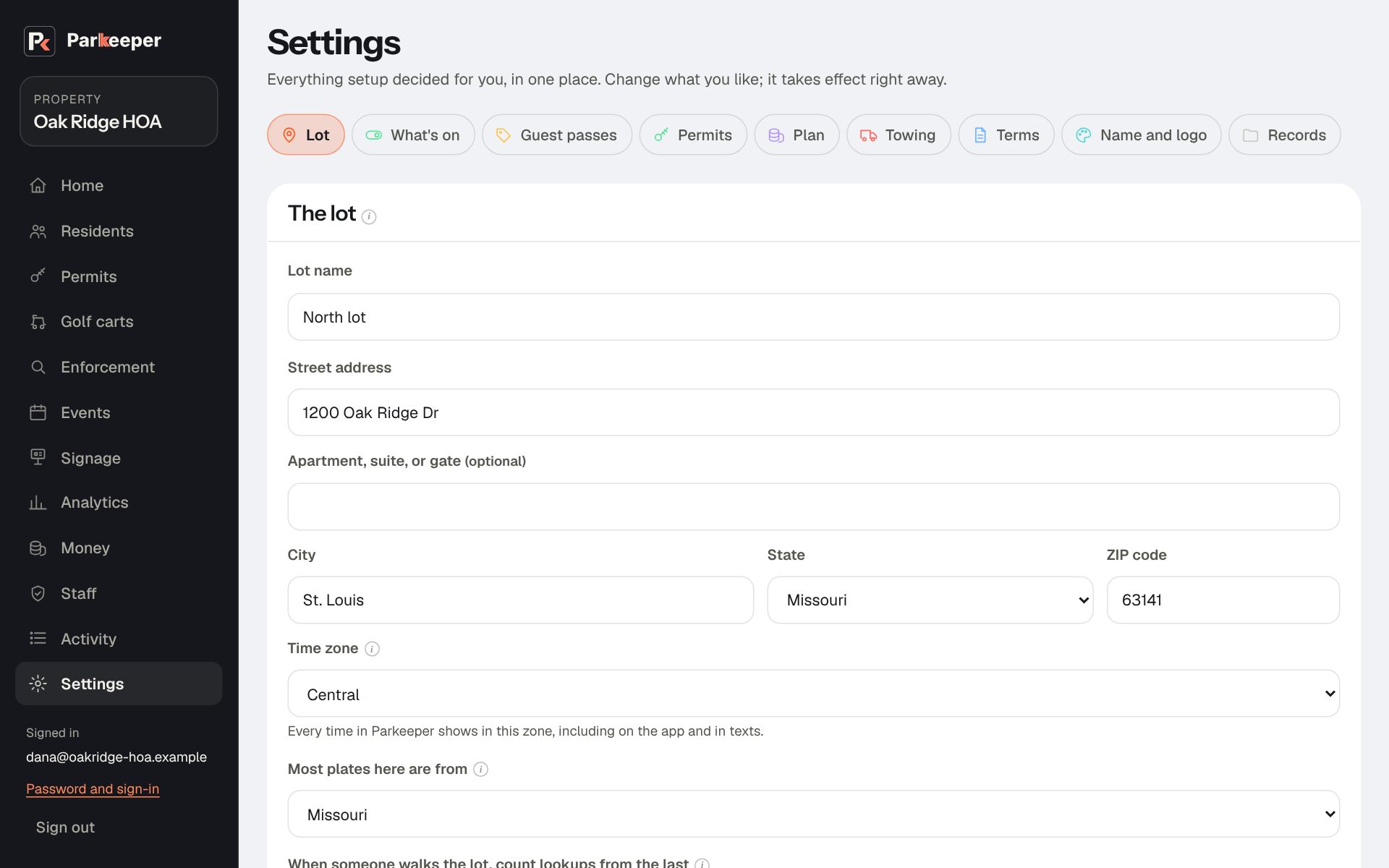
The lot's Lot name, Address, Time zone, the state Most plates here are from, the number of spaces, and how far back a sweep starts. Setup makes your first lot; add more under Add a lot. With more than one, the lot's settings are on the Lot, What's on, Guest passes, and Permits tabs: choose the lot's name next to Settings for at the top of each.
- Time zone: every time in Parkeeper (passes, warnings, permit hours) is shown in it. Get it right, or a pass "until 9 PM" ends at the wrong 9 PM.
- Most plates here are from: the state picked first when anyone types a plate, which saves a tap on almost every check. It's saved for the whole property, so it applies to every lot.
Add or remove a lot
For parking in another place at the same property: a second building's lot, a back lot, or an overflow field. Under Settings › Lot, Add a lot takes its Lot name, its full address, its Time zone, and either its spot numbers or How many spaces it has. Choose Add the lot, and its settings open.
- Each lot has its own spaces, kinds of permit, guest pass rules, and switches. A new lot starts with the same guest pass switches and limits as your first lot and no kinds of permit: add them under Permits with the new lot chosen.
- Your plan follows the total spaces across all your lots, never per lot. If the new lot takes you past your plan, Settings shows the new price and asks before adding it; nothing changes mid-term. Plans go up to 400 spaces in all.
- One sign covers every lot: visitors pick their lot on the sign's page. Whoever checks the lots needs each one added under Staff.
- Remove this lot appears with two or more lots, and works only for a lot with nothing on it yet: no kinds of permit, permits, passes, plate checks, or events. Lots with records can't be removed; to stop guest passes there, turn off its guest pass switches under What's on. A property always keeps at least one lot.
What's on
Switches for the optional parts of Parkeeper. Each one is explained where it's used:
- Residents can give their guests passes: passes from residents' own pages. See Set the rules.
- Guests can get a pass from the sign: visitors without an invite. See Set the rules.
- Someone checks the lot with the app: turns the attendant app on for your property. Off ends everyone's access at once.
- Allow more permits than spaces: only when not everyone parks at once. See Kinds of permit.
- Register golf carts: see Golf carts.
- Email me a summary every Monday: the weekly email, for every admin of the property at once. See The Monday summary email.
- Email permit holders about blackout dates: tells holders when their permit won't be good. See Kinds of permit.
Guest passes and prices
See Set the rules and Charge for passes.
Your name and color
The Property name, a Color, and Your logo (Upload logo) appear on residents' and visitors' pages, the printed sign, and texts. It makes Parkeeper look like part of your community, so people trust the link they're sent. Reprint the sign after changing them.
Your web address
Every property has {name}.parkeeper.app. Properties in a management firm with three or more properties can use their own address for visitors, like parking.yourhoa.org: type it, choose Use this address, add the DNS record shown (your web person will know where), and choose Check now.
Your Parkeeper plan
See Your Parkeeper plan.
Getting paid
Towing
Parking terms
Your parking terms are the agreement between you and the people who park: what a pass allows, refunds, enforcement, and responsibility for damage. Everyone agrees to them when they get a permit or pass, and they're linked from every checkout, pass, confirmation email, and receipt.
When to use it: before your first permit or pass, and whenever your rules change. Parkeeper provides a default text as a starting point; it's general, not legal advice for your state.
- Fill in Who the terms name: your legal name, mailing address, and a phone and email for parking questions. These go into the default text, so a parker knows who to contact.
- To change the text, edit Your parking terms and choose Save as a new version. What parkers read previews it.
- Make sure the terms say the same as your signs and your community's rules. If they differ, the posted sign generally wins, and a mismatch weakens both.
Earlier versions stay viewable, and each pass links to the version the parker agreed to. Restore the default goes back to Parkeeper's text. Have your own attorney look at the terms if you tow or charge for parking.
How long records are kept
Keep photos for 1 to 365 days (365 to start), and Keep plate records for 21 to 364 days or 1 to 36 months (36 months to start). After that, photos are deleted and plate records are made anonymous, so your counts and charts stay exact but no longer say whose car it was.
When to use it: your community has a records policy, or you want to keep less personal information. Keep photos at least as long as a dispute could take: a card dispute can arrive months after a payment, and a resident may contest a warning at the next board meeting.
Kinds of permit
See Kinds of permit.
Spot numbers
Type spot numbers the way they're painted, like A1-A20, B-01-B-24, or 101-140, and choose Add. Names starting with ADA, EV, or VISITOR are tagged automatically. × removes a spot that isn't in use; a spot with a permit on it has to be freed first, so nobody loses their spot by accident. If the lot only had a count of spaces, adding spot numbers replaces that count: from then on the lot has as many spaces as it has spot numbers, so add them all.