Permits
Kinds of permit and their rules, issuing and cancelling, plates, renewals, imports, and the waitlist.
- Kinds of permit
- Issue a permit
- Find, change, and cancel permits
- Renewals and free permits ending soon
- Import permits from a spreadsheet
- The waitlist
- Download your permits
Kinds of permit
A kind of permit is a set of rules for a group of parkers: residents, staff, a neighbor renting weekday spots, covered parking. Each permit you issue follows its kind's rules: price, length, how many cars, which spots, and which days and hours it's good. Setup made one for each group you picked; change them under Settings › Kinds of permit.
When to use it: your rules differ between groups. If two groups follow the same rules, one kind is simpler. If one group has a different price, hours, or spot, give it its own kind.
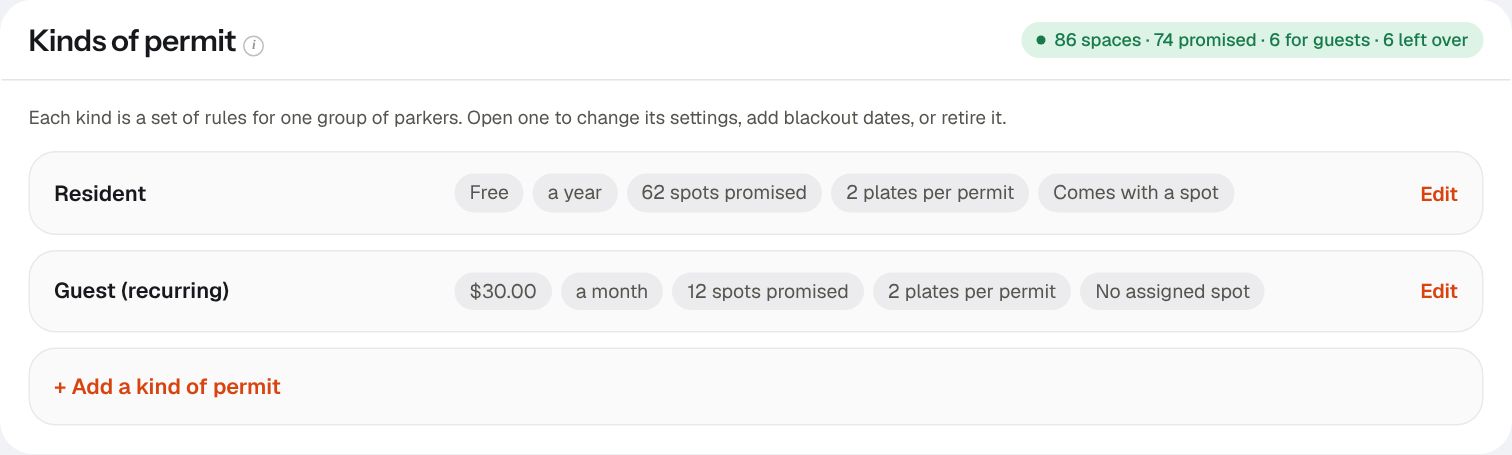
What each setting does, and why
- Price (0 for free) and how long it Lasts: a priced permit renews with an emailed link; a free one is extended by you in bulk.
- Spots promised: how many spots this group is counted against. It shows when you're promising more parking than you have.
- Plates per permit: how many cars one permit covers. Two lets a household swap cars without calling you; one keeps a single spot from covering a whole family.
- Comes with a spot: for assigned parking. Each permit then names its spot, and a plate check shows it.
- When it's good: days and hours. Use it for permits that share a lot, like a neighbor's weekday permit at a church. Outside those hours, a plate check treats the car as having no permit.
- Open a kind, change what you need, and Save. New hours and blackout dates apply to every permit of that kind at once; a new price applies from each permit's next renewal.
- To add one, open Add a kind of permit.
- To stop offering one, choose Retire. Permits already issued keep working until they end, so nobody is surprised; nobody can get a new one. Bring back undoes it.
- To close a kind of permit for certain days (a funeral, a holiday, repaving), add Blackout dates. On those days a plate check treats those cars as having no permit.
Issue a permit
A permit is what makes a plate "permitted" when someone checks the lot. Issue one for every car that's allowed to park regularly.
When to use it: a household gets parking, gets a new car, or moves to a new spot. Residents can also add or swap their own cars from their page, which saves you the call.
- Make sure the unit exists (see Add a unit). Permits belong to units.
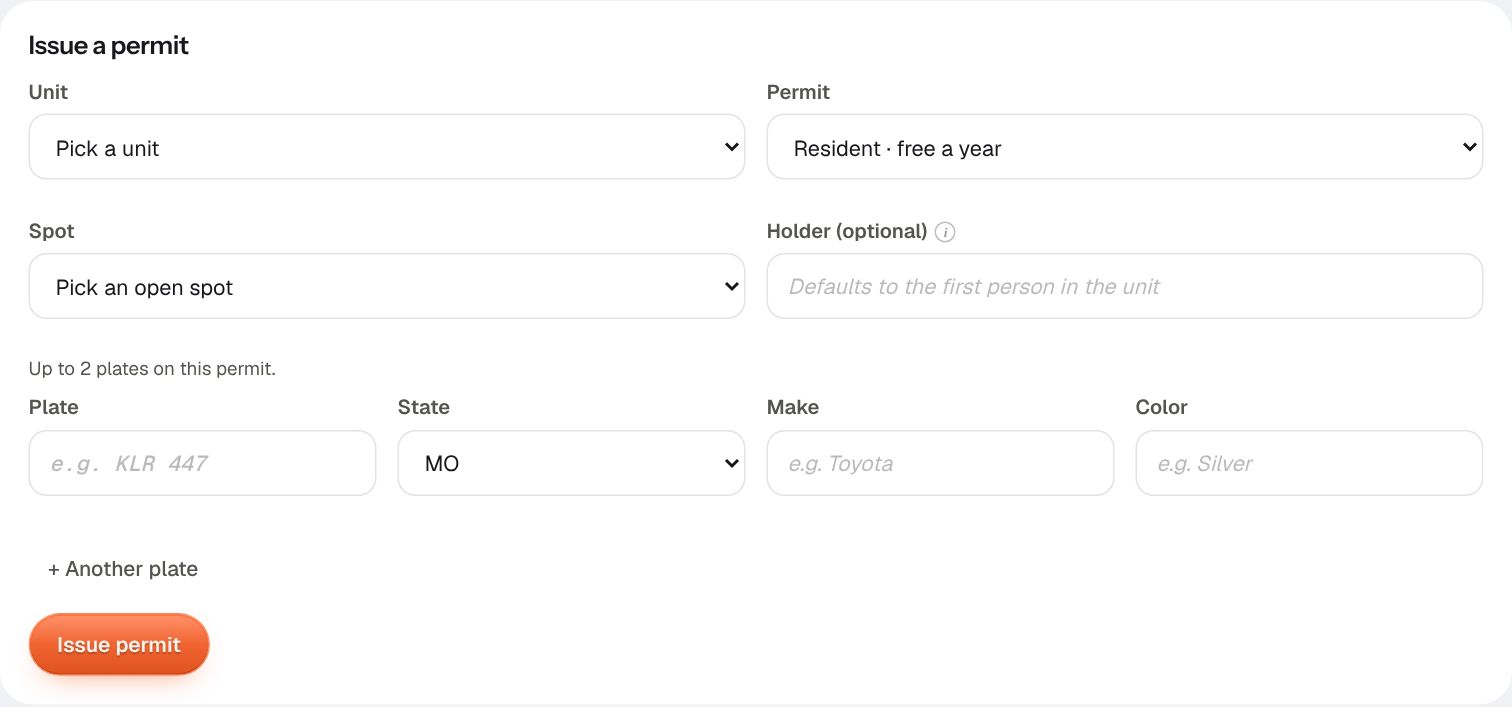
- Go to Permits and open Issue a permit.
- Pick the Unit and the Permit. If it comes with a spot, pick the Spot; spots already taken aren't offered, so you can't double-book one.
- Type the Plate and pick its State. The state matters: the same plate in two states is two different cars.
- Add the Make and Color. They're optional, but they let whoever checks the lot confirm the car at a glance, and catch a swapped plate. Use + Another plate for a second car.
- Choose Issue permit.
Whoever checks the lot sees the car as permitted right away; a phone that's offline picks it up at its next update, and checks again live before any warning.
Find, change, and cancel permits
When to use it: someone sold a car, a permit was issued by mistake, or you need to answer "is this car allowed?"
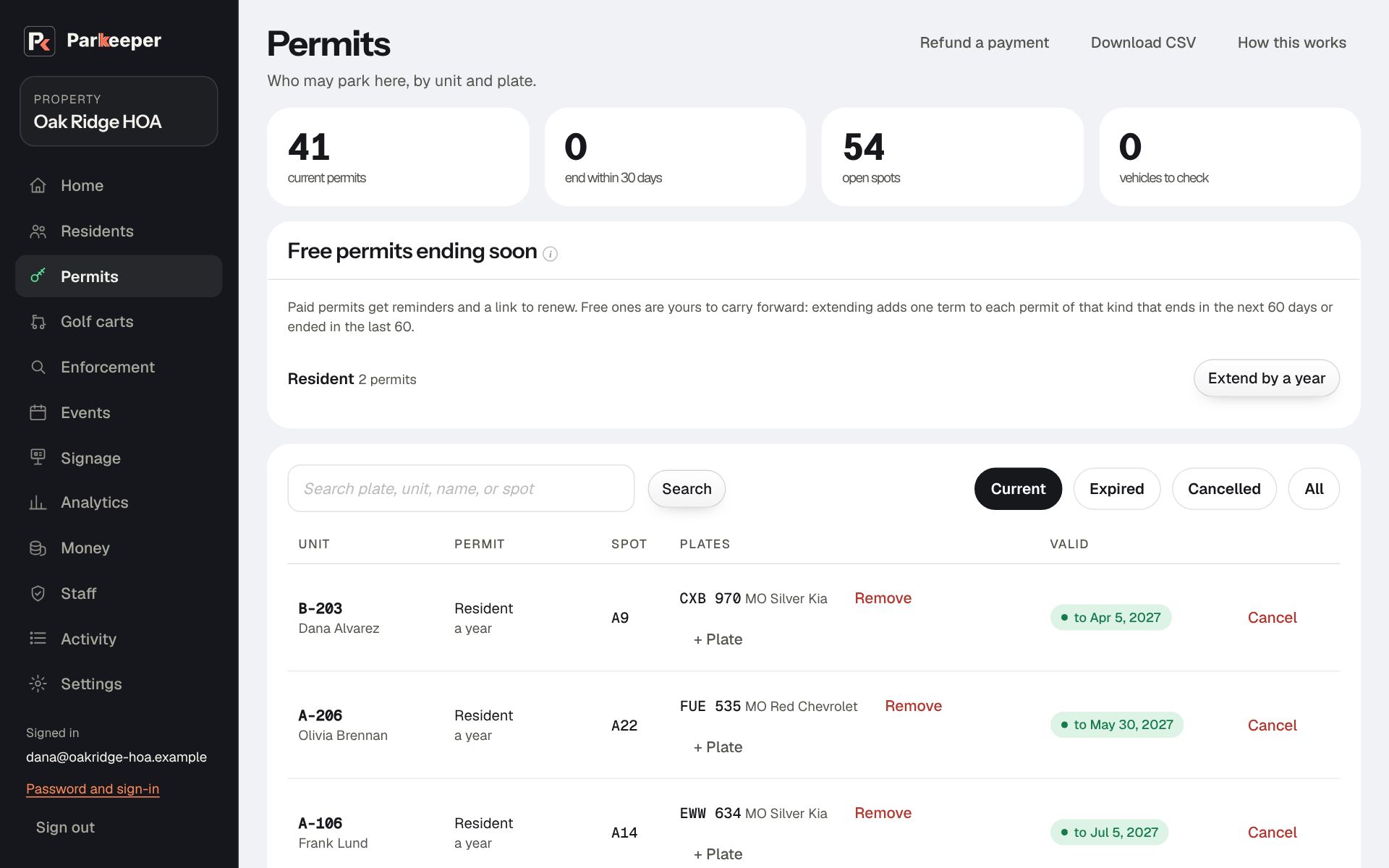
- Search by plate, unit, name, or spot. The chips switch between Current, Expired, Cancelled, and All; check All before deciding a car never had a permit.
- + Plate adds a car to a permit (up to its plate limit). Remove next to a plate takes it off. Use these for a new car instead of cancelling and reissuing, so the permit keeps its dates and payment history.
- Cancel ends a permit now, and its plates stop being permitted at once. To give money back too, use Refund a payment, which can end the permit in the same step.
- A check pill means a car's make, model, or color didn't match the standard list (often a typo). It's still permitted, and the description stays as it was typed.
Renewals and free permits ending soon
Paid permits renew themselves: holders get an email 14 and 7 days before a permit ends and, the day before, a text if they turned texts on for their own number (an email if not), each with a link to renew. Paying renews it right away. You don't chase anyone.
Free permits don't renew on their own, on purpose: an end date is your chance to confirm the car still belongs here. When some are ending, Permits shows Free permits ending soon; choose Extend by a year (or the kind's term) to extend them all at once.
When to use it: Extend in bulk once a year, after your annual roster check. Cancel the few that shouldn't carry over first.
Import permits from a spreadsheet
When to use it: you're adding a batch of permits for residents who are already in Parkeeper. For a first move-in of people and permits together, use the move-in steps instead.
- On Permits, open Have a spreadsheet? Import it.
- Choose Download template to see the columns, fill it in, then upload it or paste the rows.
- Choose Import. The button says how many permits it found; if that number is off, check the sheet before importing.
The waitlist
When a kind of permit is full, residents can join the waitlist from their page instead of emailing you. Permits shows the Waitlist in the order people joined, which is the fair order to offer spots in.
When to use it: a spot opens up: a move-out, a cancellation, or a permit that wasn't renewed.
- Offer a spot emails the unit that one is available, so they can get the permit.
- Remove takes a unit off the list, for example if they no longer want one.
Download your permits
Download CSV at the top of Permits gives every permit, current and past, with its holder, kind, spot, plates, and dates. Useful for an annual roster check or a board report.