Residents
Units and people: adding them, sending sign-in links, edits, move-outs, and bringing a whole roster over.
- How residents work
- Add a unit and its people
- Send sign-in links
- Edit a unit
- Move a unit out
- Bring everyone over from a spreadsheet
- Download your residents
How residents work
A unit is a home: an apartment, a condo, a house, or for an office, a tenant business. Permits and guest passes belong to the unit, not to one person, so everyone who lives there shares them and nothing breaks when one person moves out or changes phones.
People in a unit sign in with a link or a code, never a password, and stay signed in for 90 days. That's deliberate: residents don't need another password to forget, and there's nothing for anyone to steal.
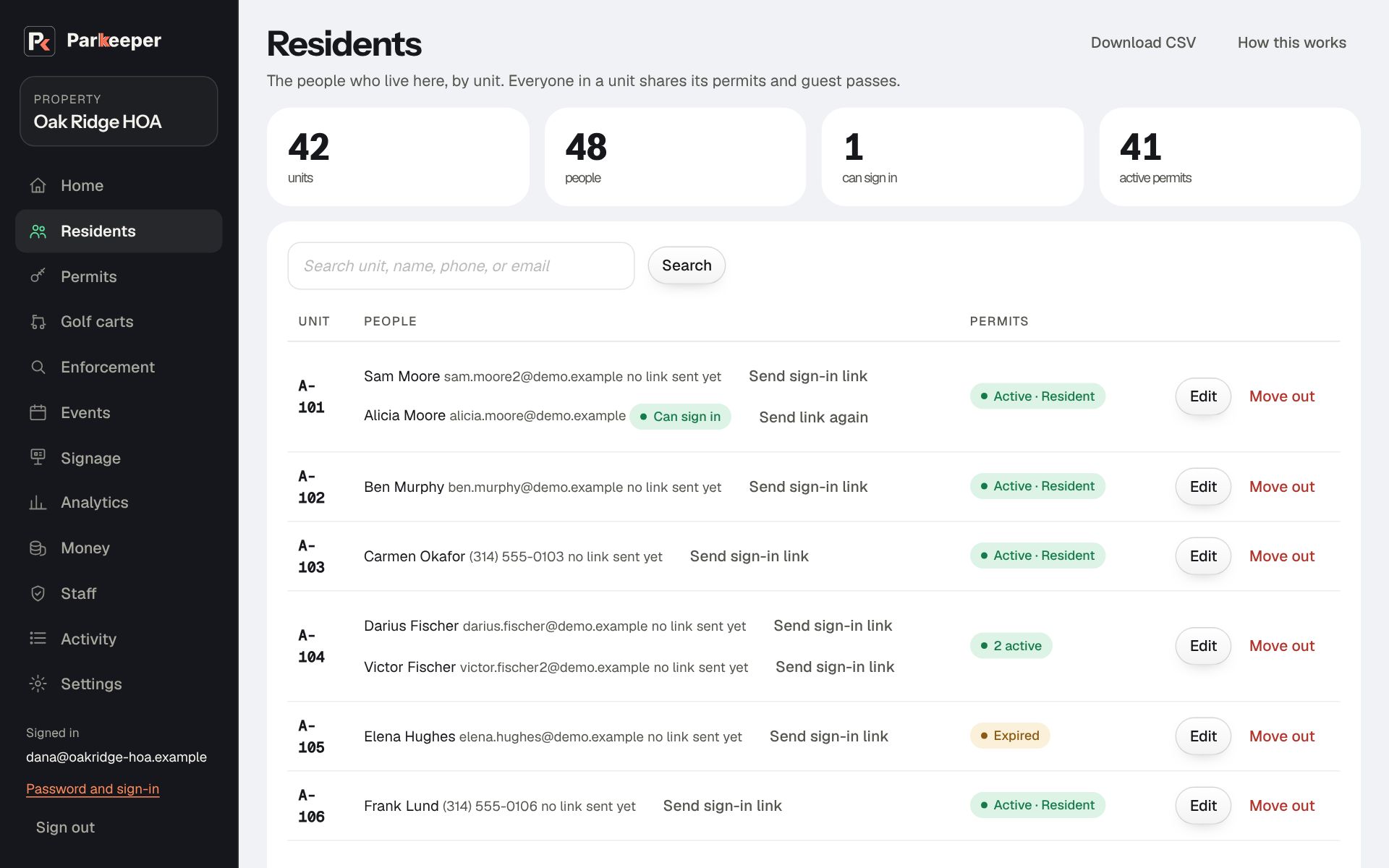
The page shows each unit, its people, whether each person Can sign in, and the unit's permits. The search box finds a unit, a name, a phone number, or an email.
Add a unit and its people
When to use it: a new household moves in, or for a handful of people. For more than about ten, bring them over from a spreadsheet instead.
- Go to Residents and open Add a unit or a person.
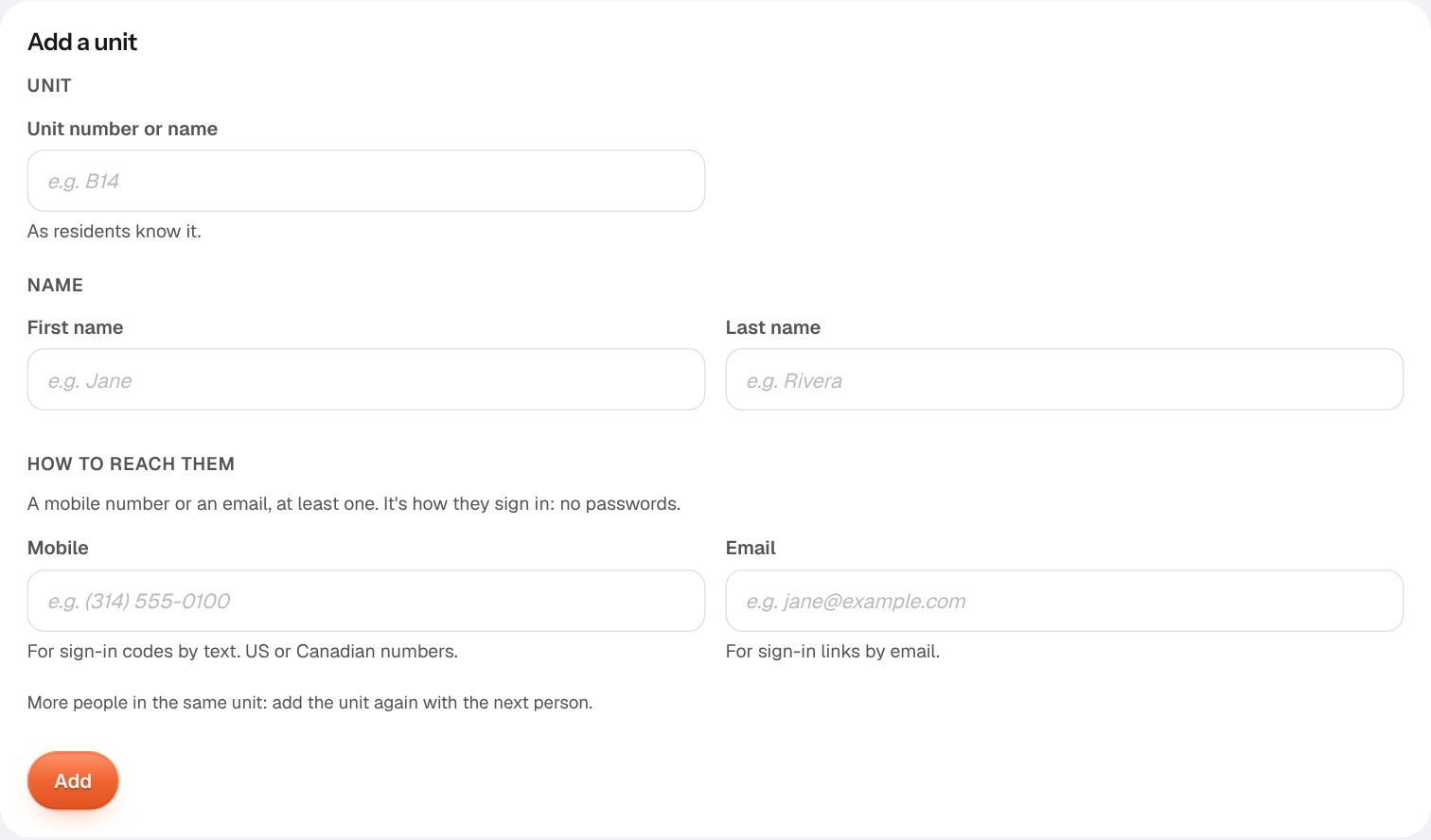
- Type the Unit number or name the way your community writes it (for example
A-101), so it matches your own records and the mailbox. - Type the person's First name, Last name, and a Mobile or an Email. One is enough; it's how they'll sign in. An email is better if you have it: sign-in links by email cost nothing and always arrive.
- Choose Add. To add another person to the same home, add them with the same unit; they'll share its permits and passes.
Send sign-in links
Residents need to sign in to see their permits, add or swap a car, pay for anything with a price, and give guest passes if your property lets them. Until they do, every one of those is a phone call to you.
When to use it: once the household and its permits are in, so the first thing they see is their own permit. Send links in batches when you start, then to each new household as it arrives.
- On Residents, find the person. Their pill says no link sent yet.
- Choose Send sign-in link and confirm. People with an email get a link. People with only a mobile aren't sent anything: tell them to go to your property's address, choose Sign in, and use Text me a code instead.
- The pill then changes to Can sign in, and the button to Send link again. If someone says they never got the email, Send link again; the first email often lands in spam or is ignored.
Edit a unit
When to use it: a unit was named wrong, someone's name is misspelled, or a person was added by mistake.
- Choose Edit next to the unit.
- Change the unit's name or any person's name, then Save changes.
- To take off someone who never signed in, use Remove under Take someone off this unit.
Move a unit out
Moving a unit out ends everything it held at once: its permits (freeing their spots), its guest passes, its cars, and its place on any waitlist, and it signs everyone in the unit out. That's what stops a former resident from handing out passes after they leave. The history is kept, so past warnings and payments still make sense.
When to use it: the household has left. If only one person left and others still live there, edit the unit instead.
- Choose Move out next to the unit.
- Read the confirmation. It lists exactly what will end, so you can catch a mistake before it happens. Then confirm.
Residents can also press I've moved out on their own page. That ends their own access and the passes they made, and emails you to finish the move-out. The unit and its permits stay until you act, because others may still live there.
Later, once a moved-out household passes your record window (How long records are kept), Home asks whether to keep their contact details. Keep 12 months suits a household that might come back or still owes money; Remove now is right otherwise, because it's personal information you no longer need. With no answer, details are removed 30 days later. Units, permits, and payments stay, shown as "Former resident".
Bring everyone over from a spreadsheet
The move-in steps bring residents, their permits, and their cars over from any spreadsheet, in one pass. You don't have to reformat your sheet first: you tell Parkeeper what each column is.
When to use it: you're starting out with a list from another system, an old spreadsheet, or a management company's export.
- On Residents, open Bring more residents and their permits over from a sheet and choose Use the move-in steps.
- 1. Your sheet: upload your CSV, or paste it. (From Excel or Google Sheets, save or download as CSV.)
- 2. What each column holds: for each column, pick what it is (Unit, First name, Plate, Permit, and so on) or Leave out for anything Parkeeper doesn't need, like move-in dates or notes. Tick The first row is headings if it is.
- 3. The permits they already have: match each permit name in your sheet ("Res", "Resident decal", "Garage") to one of your kinds of permit (with two lots that each have one of the same name, the choices say which lot, like "Resident (North lot)"), and say when permits with no end date end. Old systems often never recorded an end date; this sets one so renewals start working.
- 4. Check and bring them in: read the counts. If a number looks off (fewer units than you have homes), go back and fix the columns. Then choose Bring everyone in.
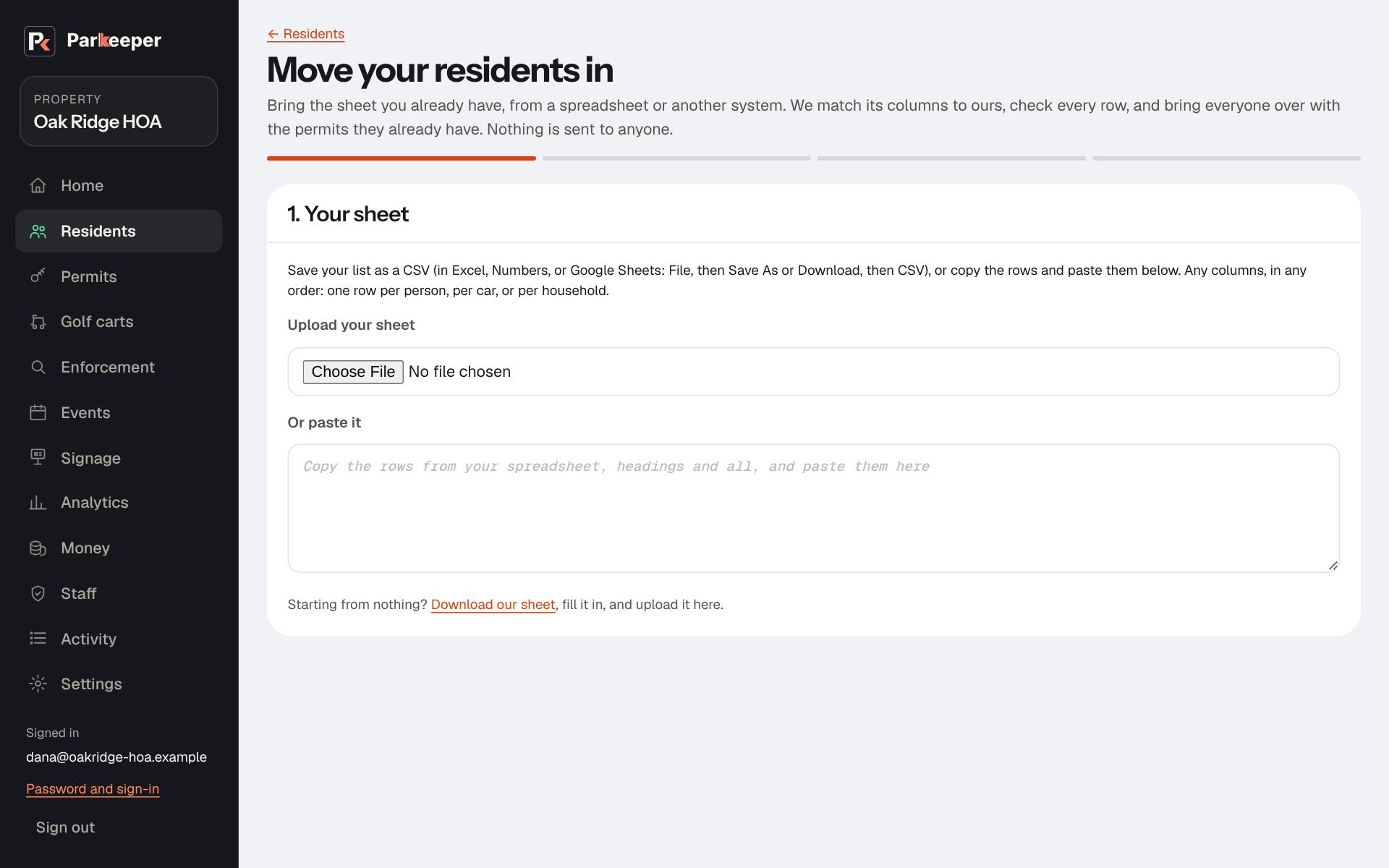
Only need the people, not their permits? Import just the people takes Unit, First name, Last name, Mobile, Email. Download template gives you a sheet with those columns.
Download your residents
Download CSV at the top of Residents gives every unit and person, how to reach them, and whether they can sign in.
When to use it: for a board report, a mailing, an audit, or to keep your own copy. Your data is always yours to take.