Events
Sell parking for a game day or festival, ahead of time or at the gate.
Set up an event
An event sells parking for a busy day: a game, a festival, a concert nearby. Selling ahead means fewer cars at the gate, less cash to handle, and you know how many are coming.
When to use it: your lot fills on certain days and people would pay to park: a church near a stadium, a school on game day, a lot near a fairground.
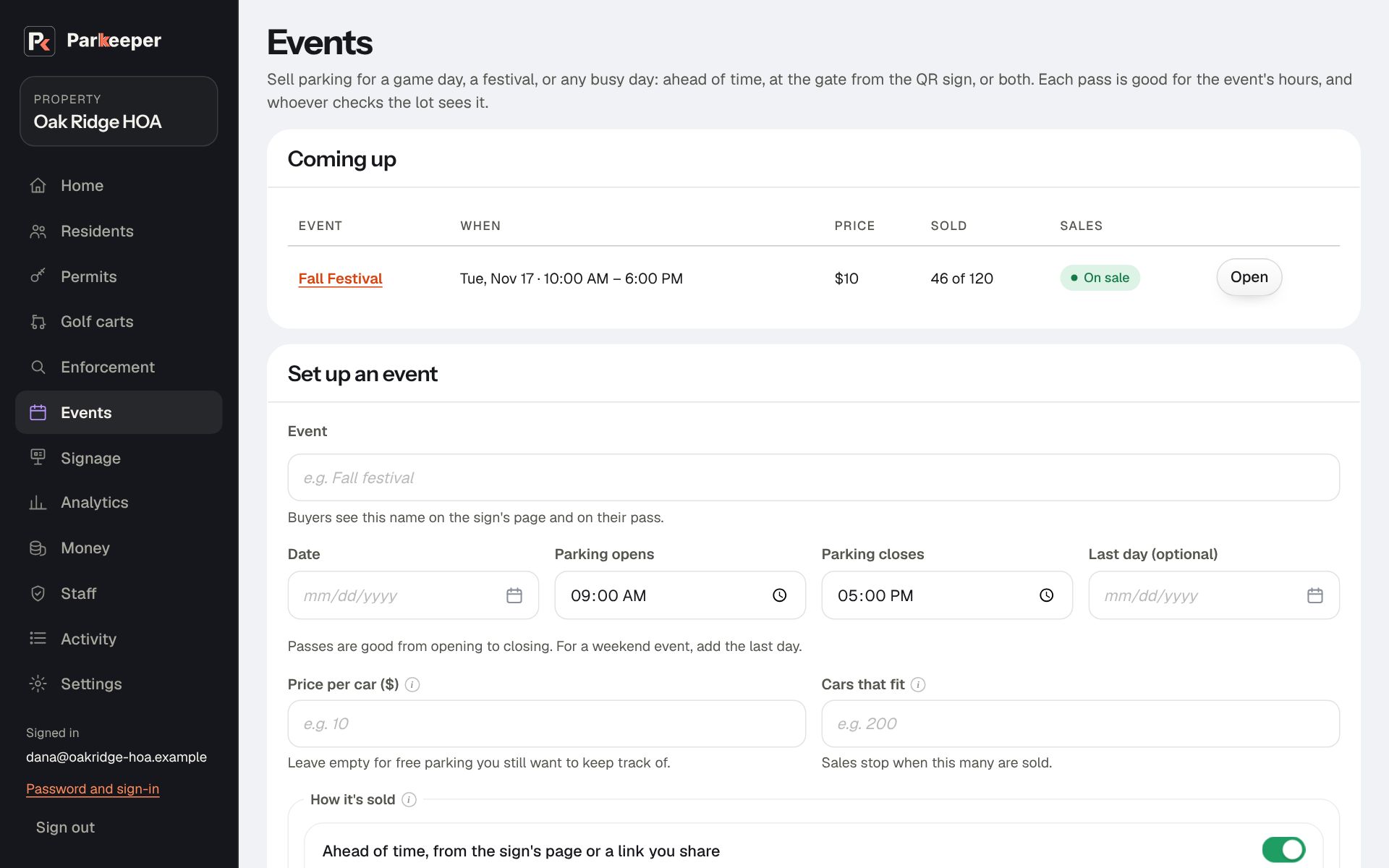
- Go to Events and find Set up an event.
- Type the Event name people will recognize, the Date, when Parking opens and closes, and a Last day if it runs several days.
- Set the Price per car and how many Cars that fit. Be honest about capacity: sales stop at that number, and every reservation is a promised spot.
- Choose How it's sold. Ahead of time sells from the sign's page, your property's address followed by
/visit, which you can also share as a link; At the gate on the day sells when drivers scan the sign; both is the usual choice. - Choose Set up event, then share the sign's page (your property's address followed by
/visit) where your crowd will see it: the bulletin, the team's page, a neighborhood group. There is no separate link for each event: on the event's day, that page sells event parking.
On the day, and afterwards
Open an event to see how many sold, what was collected, and who checked in. People who bought ahead have a pass with a QR code; whoever is at the entrance scans it with the app and taps Here. No code? They type the plate instead.
- To stop sales (the lot is full, or the event moved), untick both sales boxes and Save sales.
- Cancel an event on Events only while nothing has sold. Once people have paid, refund them instead, so nobody pays for parking that isn't happening.
- Past events show who checked in and the no-shows; Report opens the details. Use it to set next time's capacity and price.