Guest passes and the sign
How passes work, setting the limits, prices, days without passes, and the printed sign.
- How guest passes work
- Set the rules
- Charge for passes (optional)
- Days guest passes aren't offered
- Print the sign
How guest passes work
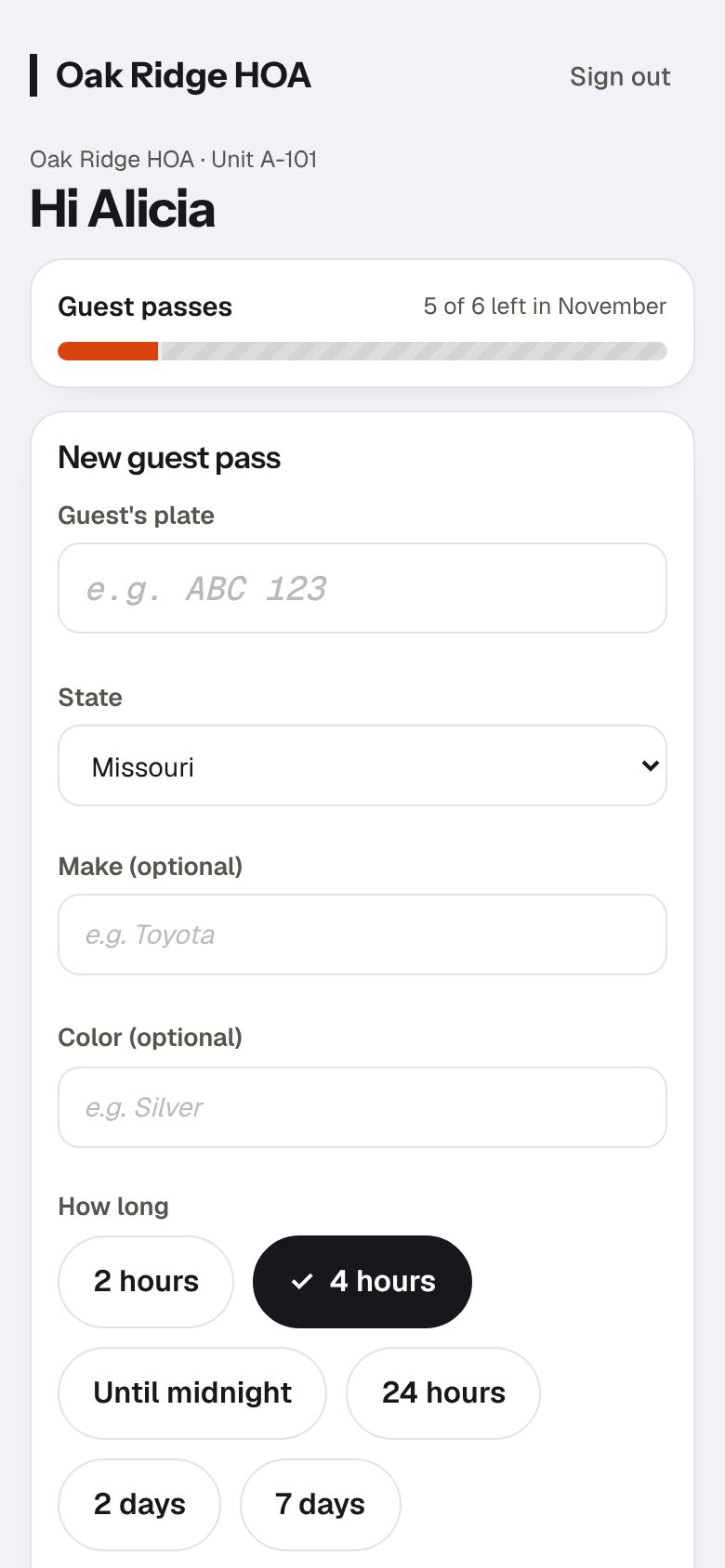
A guest pass is a plate and a time window. While it's on, the car counts as allowed when someone checks the lot. Passes replace the hanging tag and the "is my guest OK?" phone call.
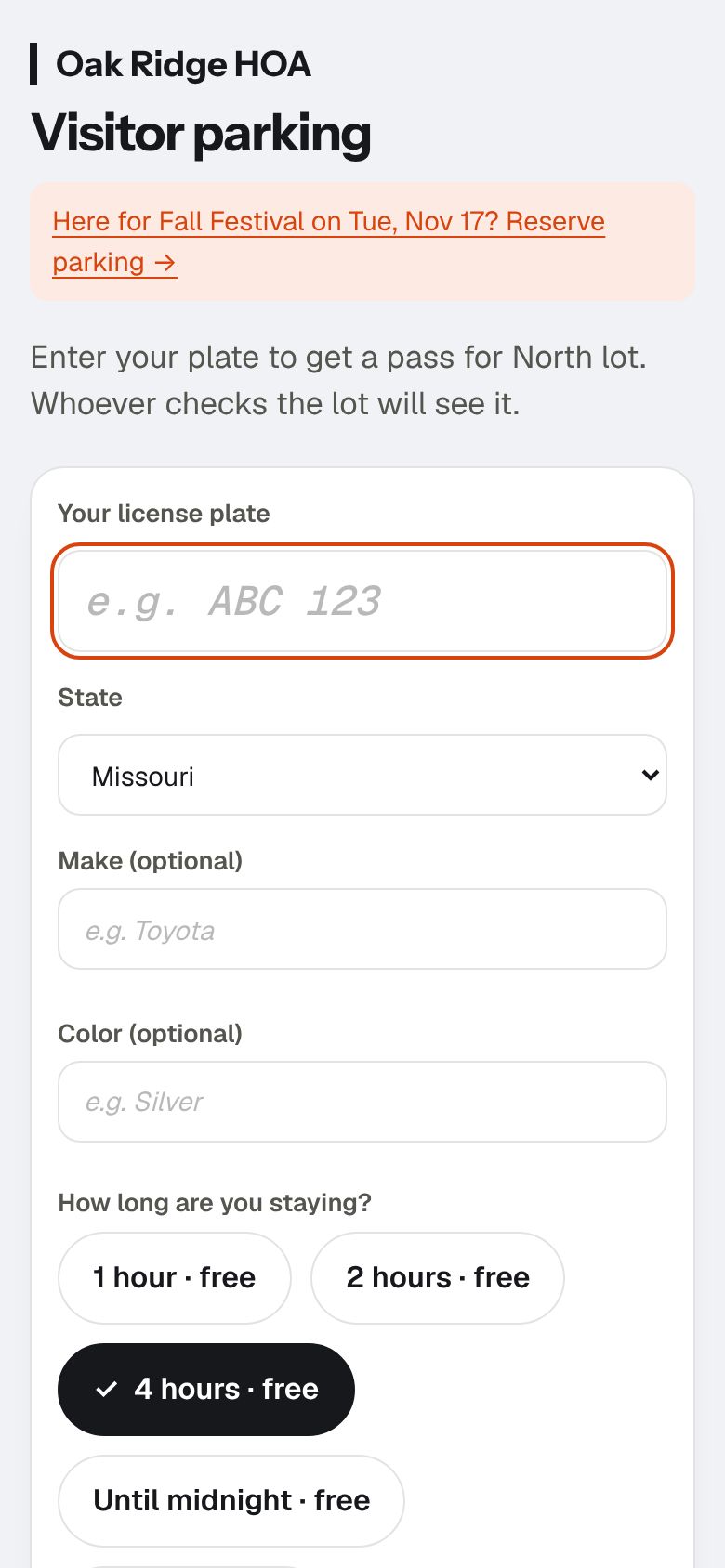
There are two ways to get one, and each has its own switch. Residents give passes from their page and share them with their guest by text or email. Visitors get their own by scanning the sign at the lot, with no app and no account. That's useful for a clinic's patients or a church's visitors, who don't have a resident to ask.
When to use it: turn on the way that matches how guests arrive. Residents giving passes suits an HOA or apartments where guests come to see someone. The sign suits visitors who come to the place itself. Some properties want both; a property where guests simply park, or where every guest is handled at the office, can turn both off.
Set the rules
The limits under Settings › Guest passes are your parking rules, written down. Parkeeper enforces them for you, so a resident who's out of passes hears it from the page, not from you.
When to use it: before you send sign-in links, and again whenever the board changes the rules. Start strict: it's easier to raise a limit than to take one back.
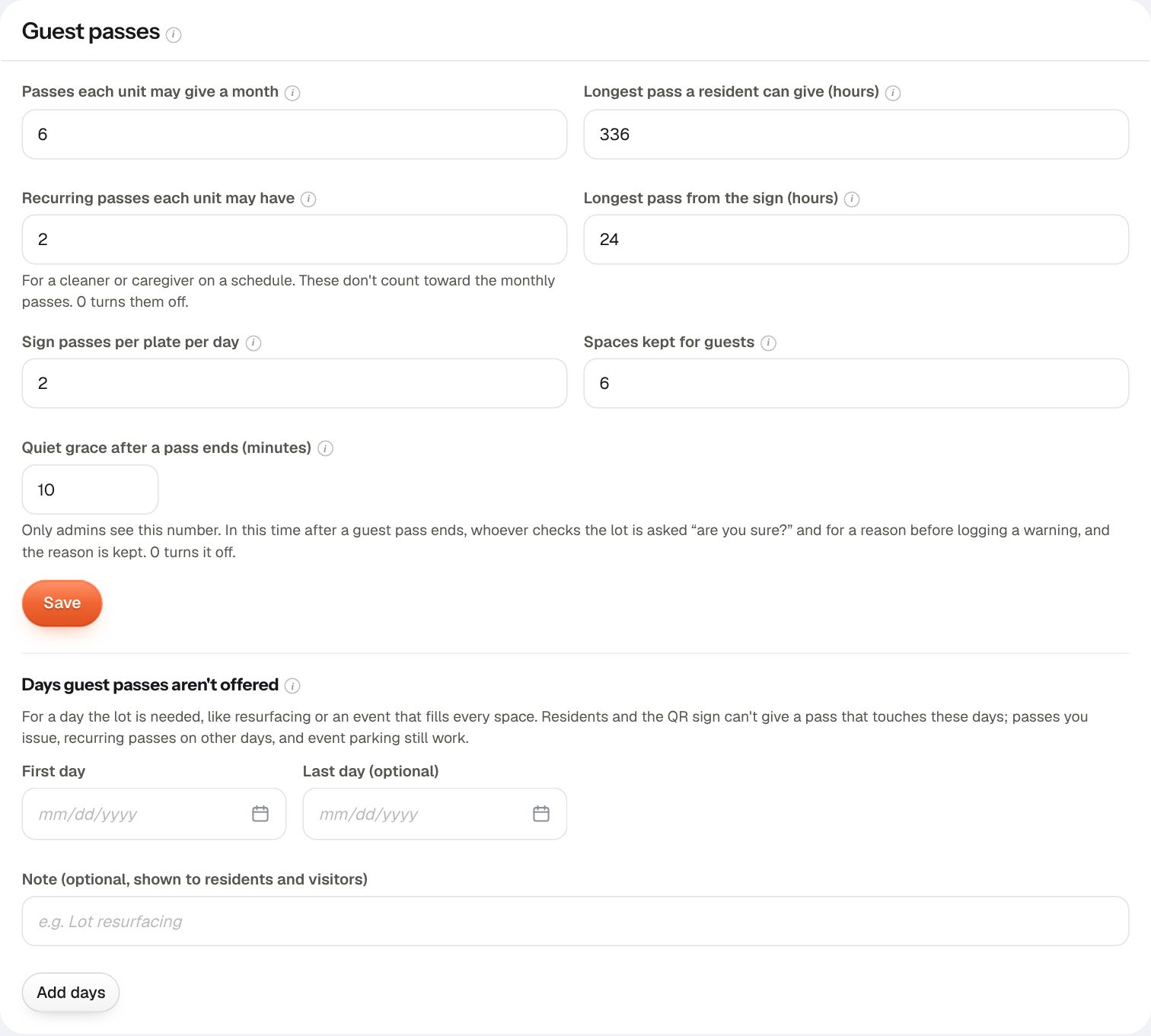
- Passes each unit may give a month: stops guest passes from becoming a second permit. Set it near what a typical household needs.
- Longest pass a resident can give: covers a visit, not a move-in. A long-term guest should get a permit instead.
- Recurring passes each unit may have: for someone who comes on a schedule, like a caregiver or a dog walker, so the resident doesn't make a new pass every visit.
- Longest pass from the sign and Sign passes per plate per day: limits for visitors without an invite. They stop a commuter from using your lot as free all-day parking.
- Spaces kept for guests: spots held back from permits. When they're all taken, the sign turns visitors away instead of letting the lot overfill, and Analytics counts each one turned away.
- Quiet grace after a pass ends: a few minutes after a pass ends before a car counts as not authorized, so a guest walking back to their car isn't ticketed. Only admins see this number, so it never becomes "free minutes" everyone knows about. Keep it out of newsletters and signs.
Turn each kind on or off under Settings › What's on. Residents can give their guests passes: with it off, guest passes disappear from residents' pages, they can't make or buy one, and recurring passes pause until you turn it back on. Passes already given stay good until they end. Guests can get a pass from the sign: leave it off for a residents-only community where every guest should be invited.
Charge for passes (optional)
Under Settings › Prices for guest passes, set a price for passes from the sign (1 hour, 2 hours, 4 hours, until midnight, 24 hours) and for an Extra resident pass past the monthly limit. Leave a price at $0 to keep that pass free.
When to use it: your lot is in demand from people who aren't residents (near a hospital, a stadium, or downtown), or residents keep running out of passes. A small price for extras is often fairer than a hard limit.
Days guest passes aren't offered
Turn off new guest passes for certain days, with a note residents and visitors will see.
When to use it: the lot is needed for something else: a big community event, repaving, restriping, or snow removal.
- Go to Settings › Guest passes › Days guest passes aren't offered.
- Enter the First day, the Last day (optional), and a Note that says why, for example "Lot repaving: please park on Elm St." A reason gets far fewer complaints than a silent "no".
- Choose Add days. Remove offers passes again.
Print the sign
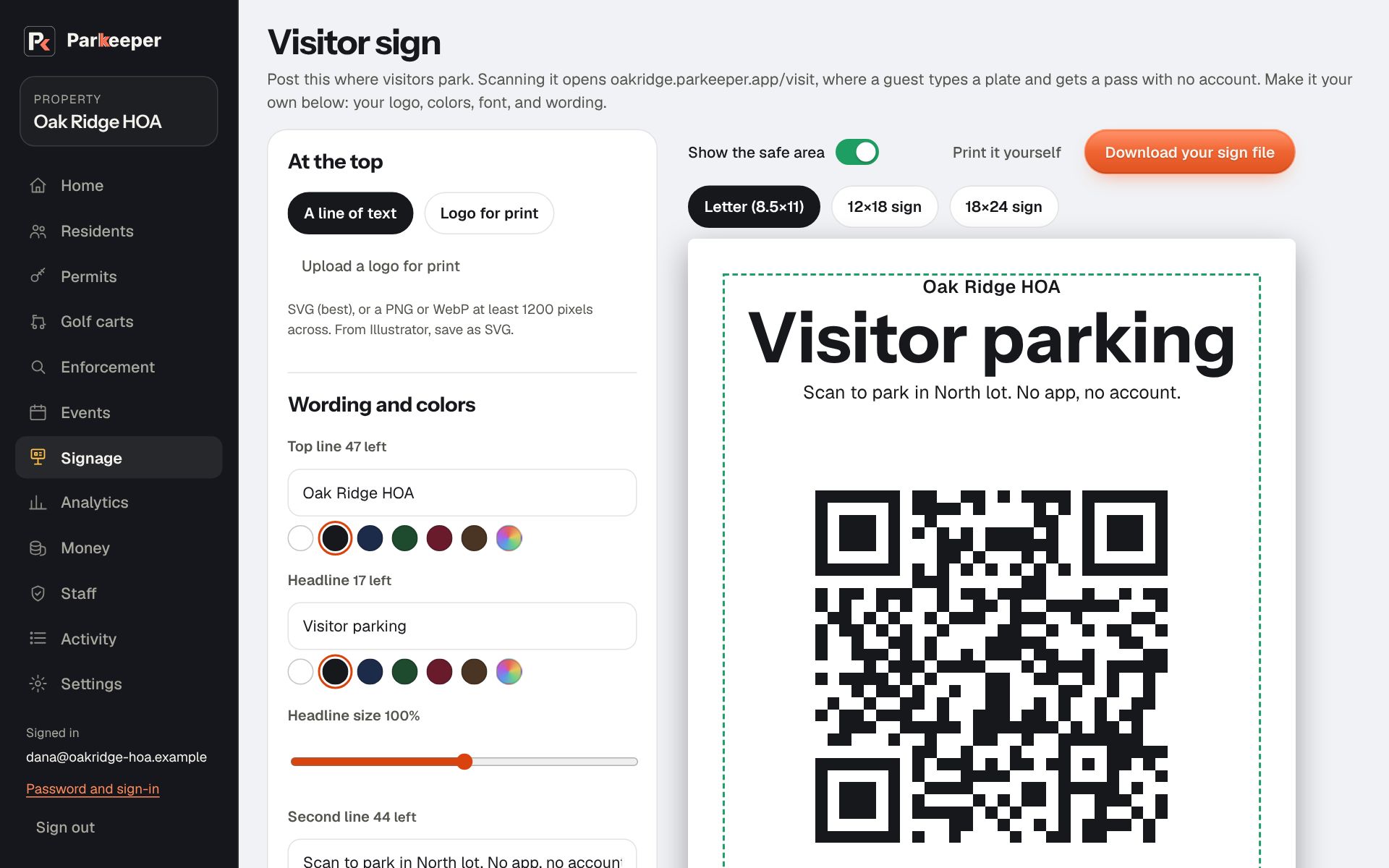
The sign has a QR code visitors scan to get a pass on their phone, with no app and no account. It's the front door for anyone who isn't a resident.
When to use it: once your guest pass rules are set and passes from the sign are on. Reprint it if you change your property's name or logo.
- Open Signage in the menu (or Print your guest sign on Home while you set up).
- Pick a size: Letter (8.5×11) for a door or a window, or a 12×18 sign or 18×24 sign for the lot entrance, readable from a car. The larger sizes come with advice for a print shop.
- Make it your own if you like. At the top, put a line of text, your logo from Settings, or a logo uploaded for print (an SVG, or a PNG or WebP at least 1200 pixels across); a one-color logo can take any color. Then pick each line's wording and color, the background, the code's color, a border (inside the safe area or off the edge, any thickness and color), the font, and the sizes. The code shrinks to make room, and the page says when it gets too small. Save design keeps it for next time. The address and the code always stay as they are, and colors too faint to read or scan are refused.
- Choose Download your sign file for a PDF at the sign's real size, ready for a sign shop. On the larger sizes, the dashed line shows the safe area to keep words inside, and the red circles where a post sign's holes go; neither appears in the file. For a letter-size sign, Print it yourself prints it at home.
- To have it made, we recommend eSigns.com: open their parking signs page from the button under the sign, choose the same size, upload your file in their design tool, and order.
- Post it where drivers see it before they park: at the entrance, and near visitor spots.